Time: ~5 min read. Need: a recurring rule on your account, or 5 minutes to set one up.
Next month already exists in your ledger. Your salary, your rent, the gym subscription you forgot you signed up for — they sit in grey rows under upcoming dates, ready for you to act on today. Ghost Transactions are how WealthSense turns next month into something you plan, not something you watch happen.
What a Ghost Transaction is
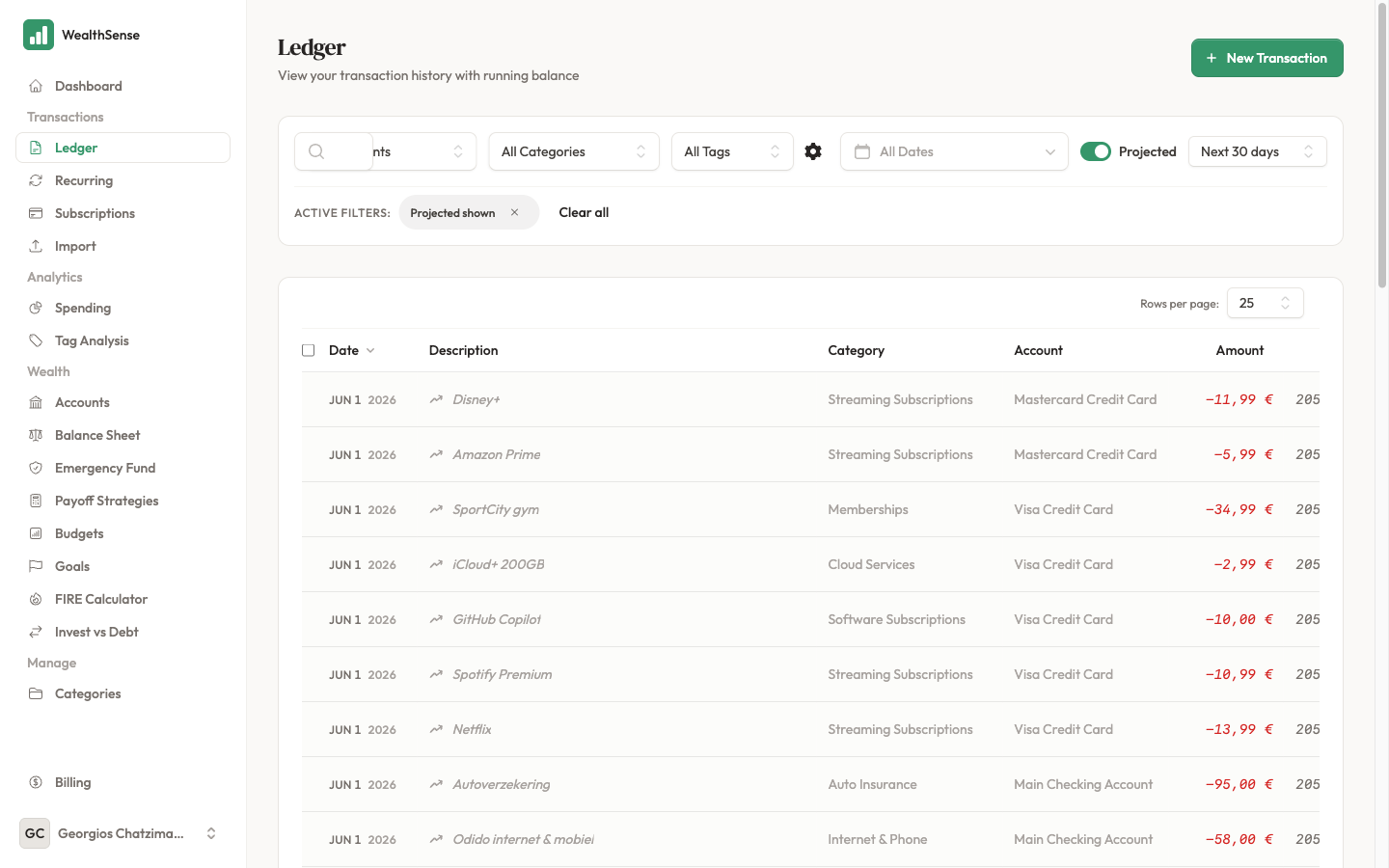
A Ghost Transaction is a forward-dated entry generated from a recurring rule. It lives in the same ledger as your actual transactions but renders in grey because the money has not moved yet. The ledger shows them across your cash-flow projection window, which defaults to 365 days; you can adjust the horizon in your profile settings.
A grey row is not a placeholder or a hidden draft. It is a calculated projection: a recurring rule said "rent is €1.500 on the 1st of every month" and WealthSense extended that into a row dated next month, the month after, and the month after that. When the 1st arrives and you record the actual payment, the grey row converts to a black row and the projection moves on to the next instance.
A Ghost Transaction is never a guess. Every one of them traces back to a rule you set up. If a grey row appears that you cannot explain, that is the signal: a rule is wrong, or a rule is missing.
What changes when you can see next month
Most personal-finance apps are bookkeepers. They show what already happened. You log in on Sunday, look at last week's spending, and feel either fine or guilty. The money is gone either way.
WealthSense is a strategist. The grey rows are the strategist's view: next month already exists in your ledger, and you can act on it now. The rent is there. The salary is there. The subscriptions are there. Sunday morning, ten minutes, a coffee — you scan next month, fix the one outlier, and close the laptop.
The shift is small in the UI but large in behaviour. A bookkeeper's question is "did this balance?" A strategist's question is "will this balance?" Ghost Transactions turn the second question into a row of numbers you can look at, beside the row of numbers you already have.
Two consequences follow:
- Your running balance projects. The balance column extends through the grey rows. If your account dips below zero on the 19th of next month, you see it now — not on the 19th when the standing order bounces.
- Your rules become your forecast. Every recurring expense in your life should be a rule in WealthSense. The completeness of your rules is the accuracy of your forecast. A missing rule is a blind spot.
The CFO model is the mental swap from bookkeeper to strategist. Ghost Transactions are how that swap shows up in the UI: not as a setting you toggle once, but as the row of numbers under next month's dates that you scan every Sunday.
How to see one in your ledger
You need at least one recurring rule for grey rows to appear. If you don't have one yet, set up Rent for the 1st of the month and Salary for the 25th — that pair triggers every Ghost Transaction behaviour you'll see below, and gives you a head start on setting up rules that match your real life.
-
Open the ledger from the sidebar.
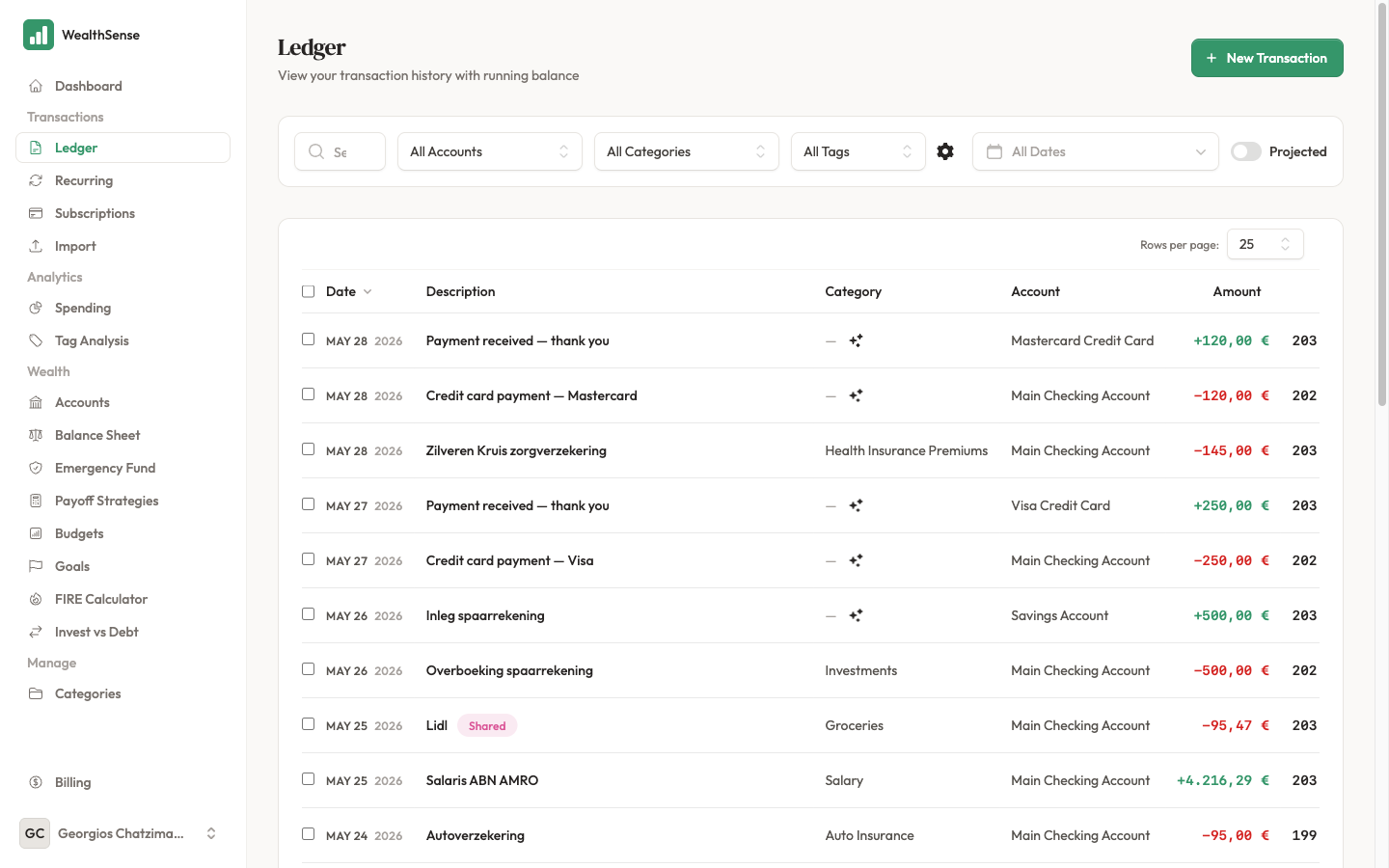
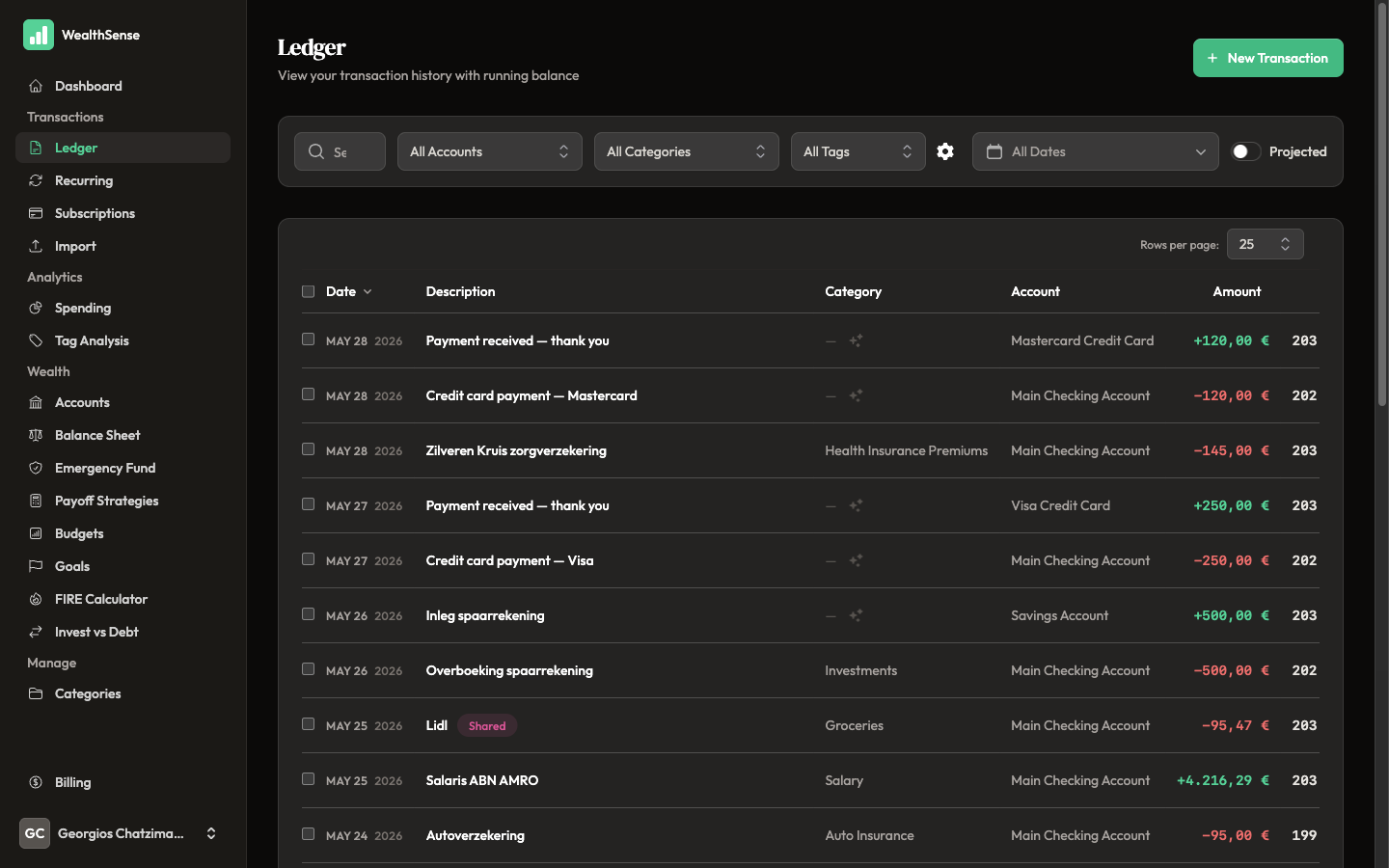
-
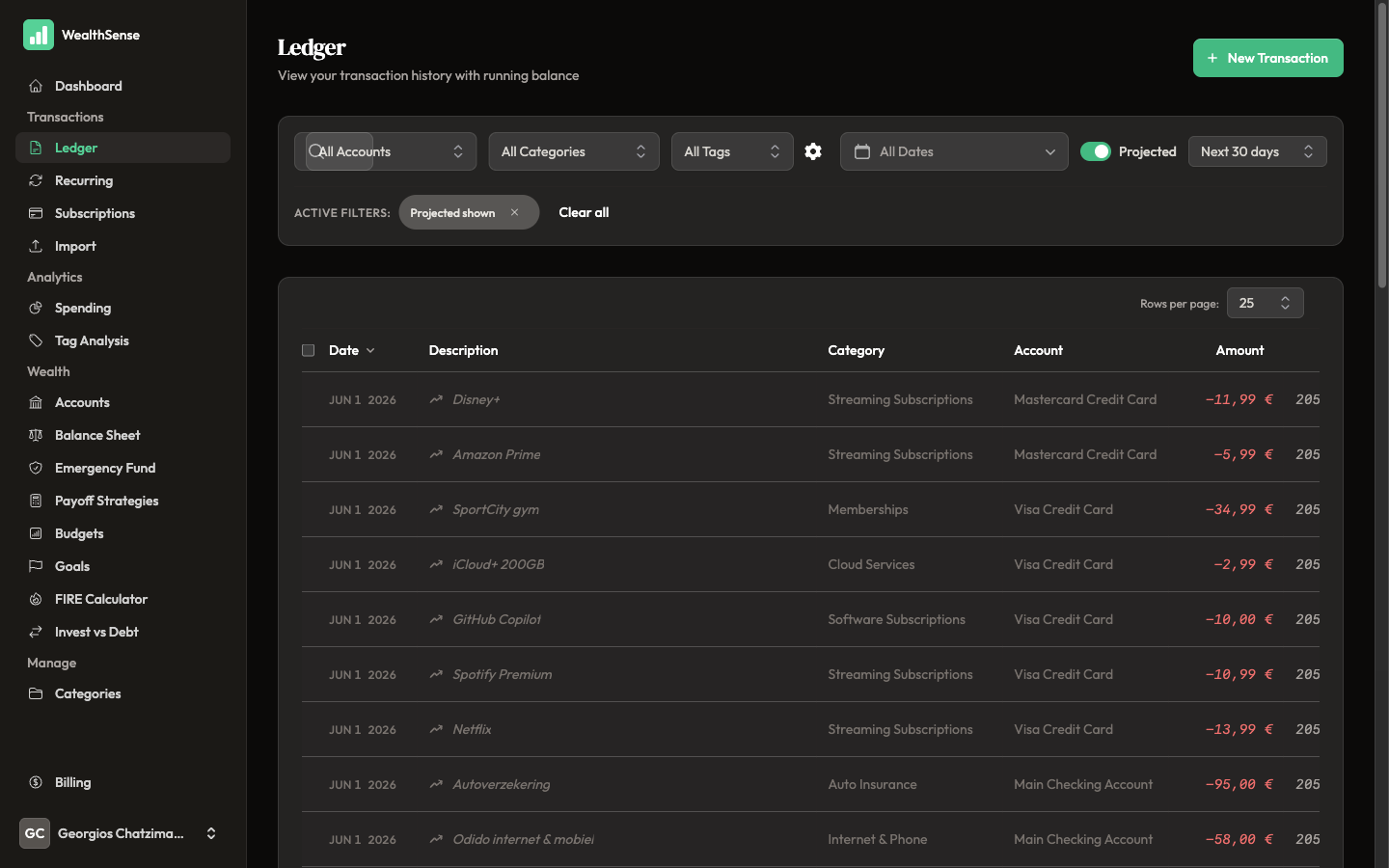
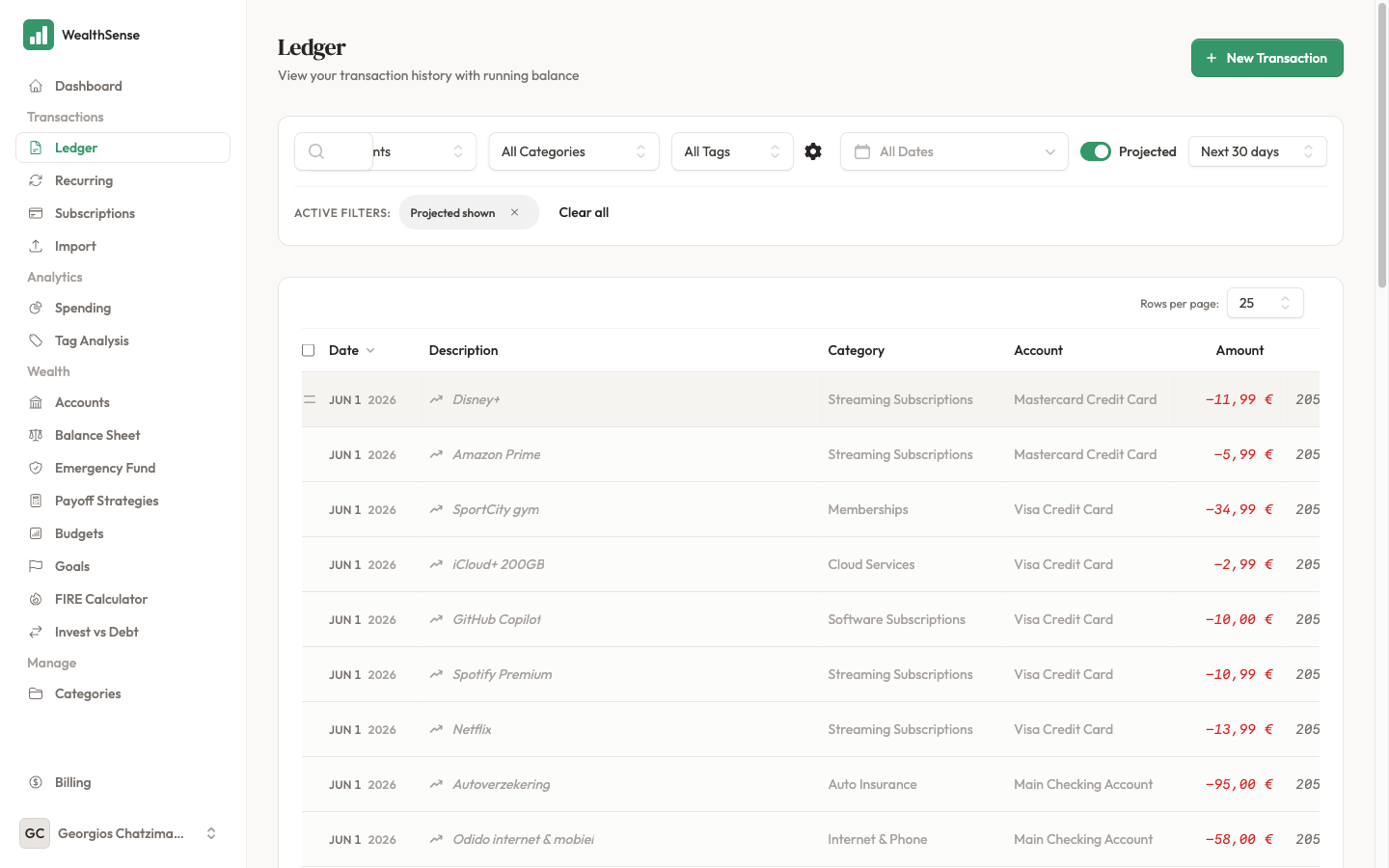
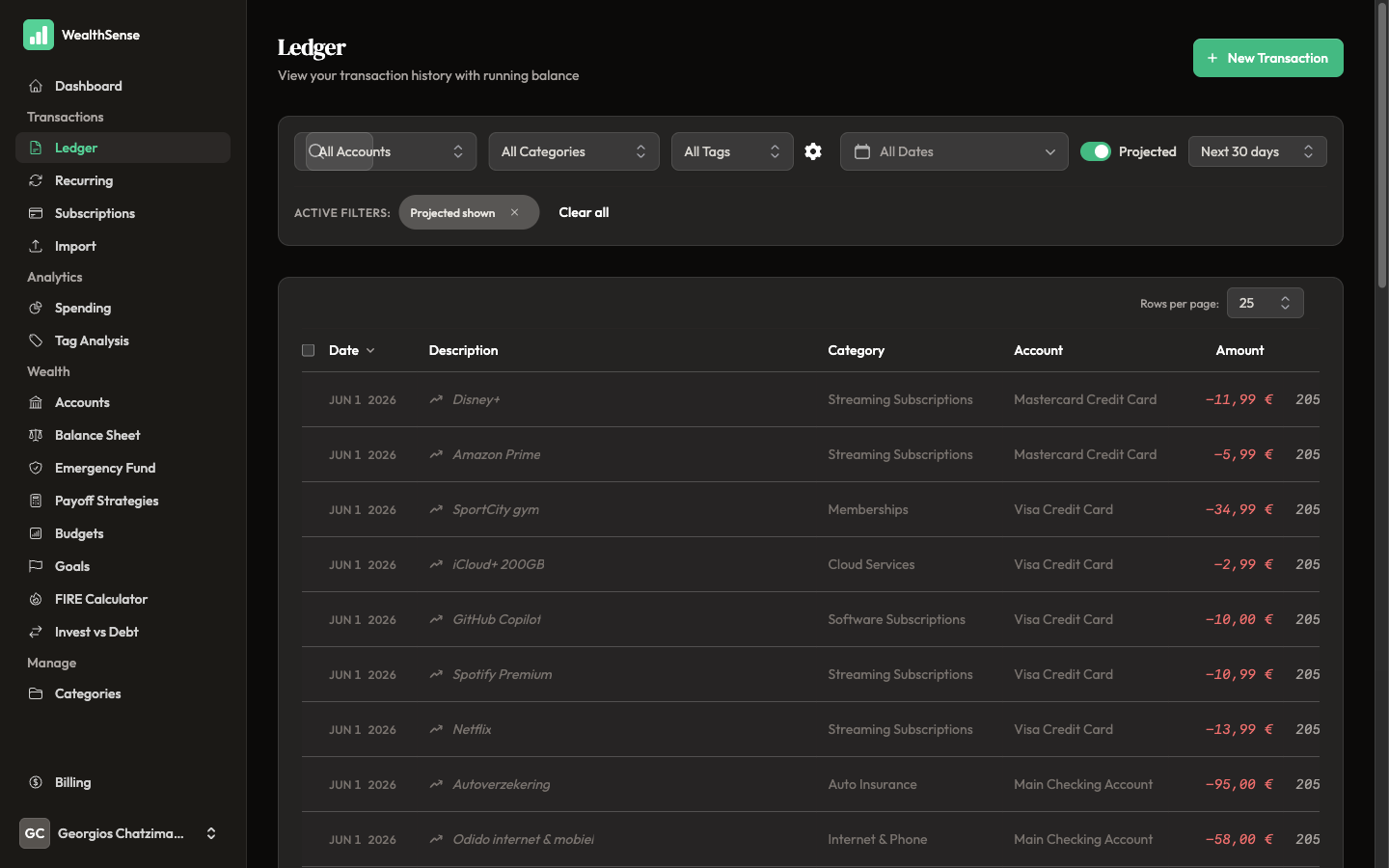
Turn on Projected in the ledger header. The view extends past today and grey rows appear under upcoming dates.
-
Read a grey row. The description names the recurring rule, the date column shows when it will fire, and the amount column shows what it adds to or takes from the running balance.
-
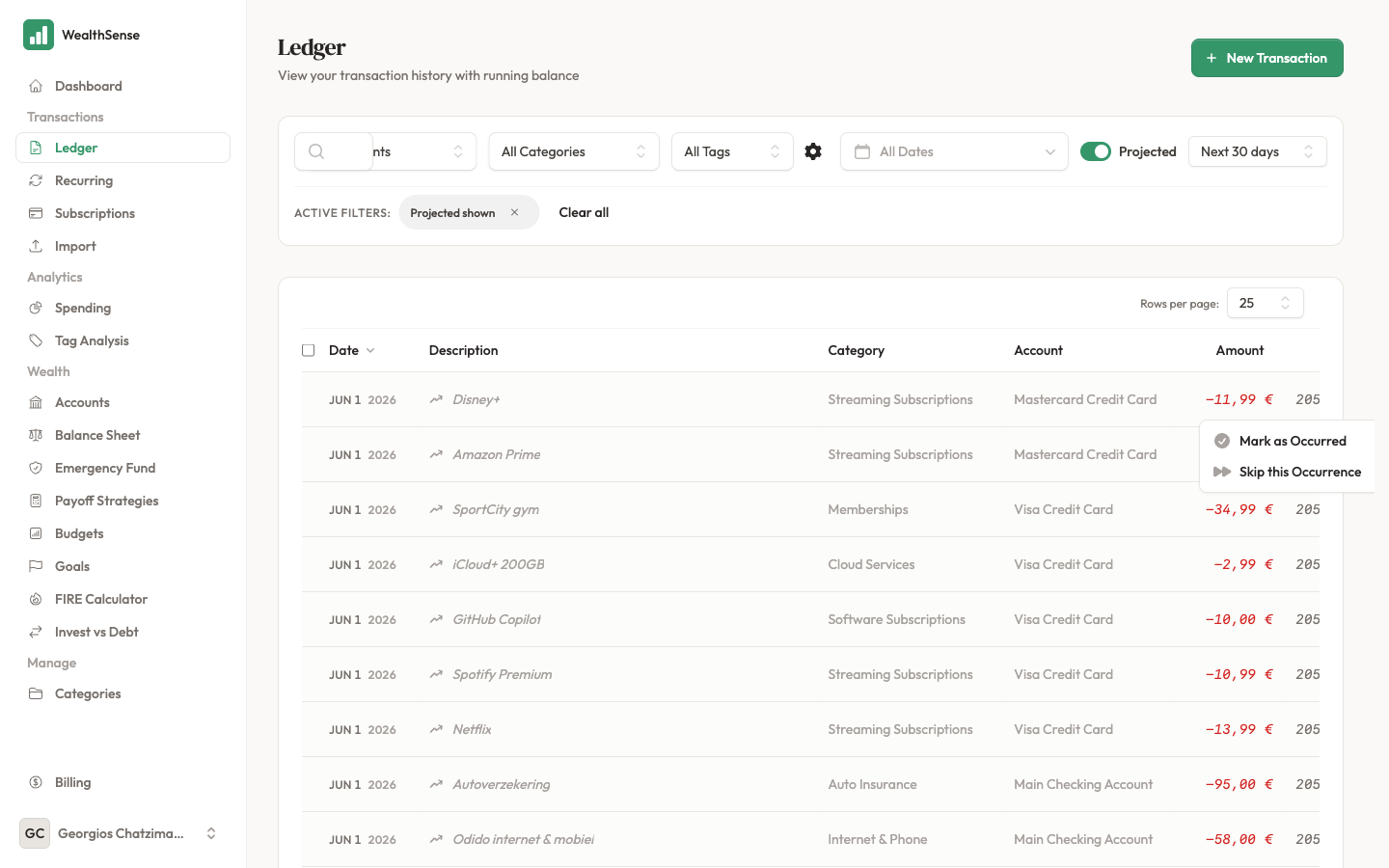
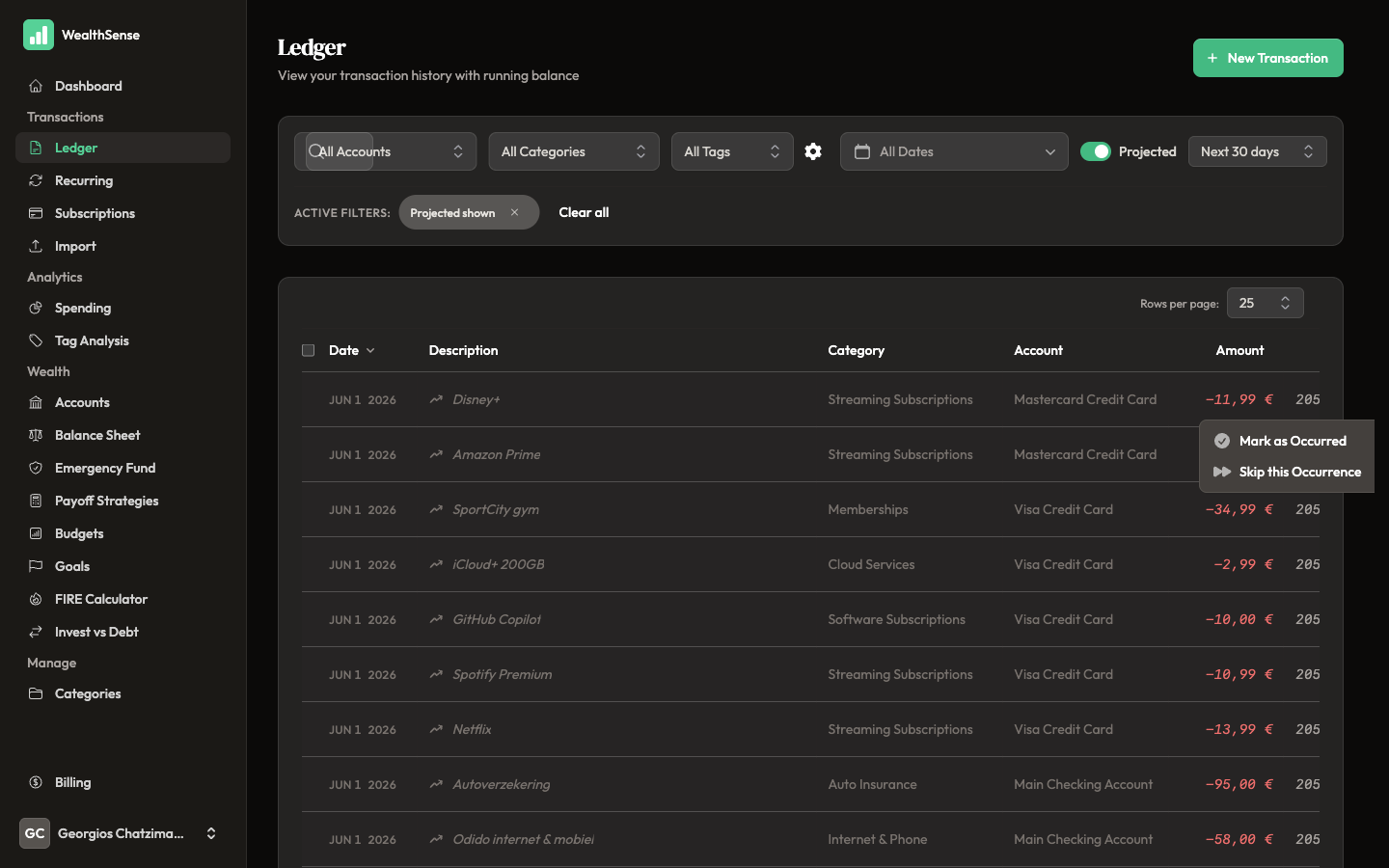
Open the actions menu on one grey row. You see Mark as Occurred (record that the payment landed) and Skip this Occurrence (rent waived this month). On desktop, use the drag handle to reschedule a projected row. Each change updates the projection and the running balance.
You're done when…
You can point at any grey row in next month's ledger and name the recurring rule that created it. If a grey row appears that you cannot trace back to a rule, open the recurring rules page, find what is missing or wrong, and update the rule. The completeness of your rules is the accuracy of your forecast.
See also
- Make your forecast accurate — Set up recurring rules that match your real life
- Turn this into a weekly habit — Your 10-minute Sunday ritual
- Understand the mental model — The CFO model of personal finance: bookkeeper vs strategist