Time: ~5 min. Need: an account in WealthSense with at least a month of transactions, and the most recent statement from the bank that account belongs to.
By the end of this you will have reconciled an account against its bank statement for the first time. That sounds like bookkeeping, and on the surface it is — but the actual job is finding your truth: the moment you spot the transaction that slipped through, the rule that fired a day early, the typo quietly hiding in your running balance.
Steps
-
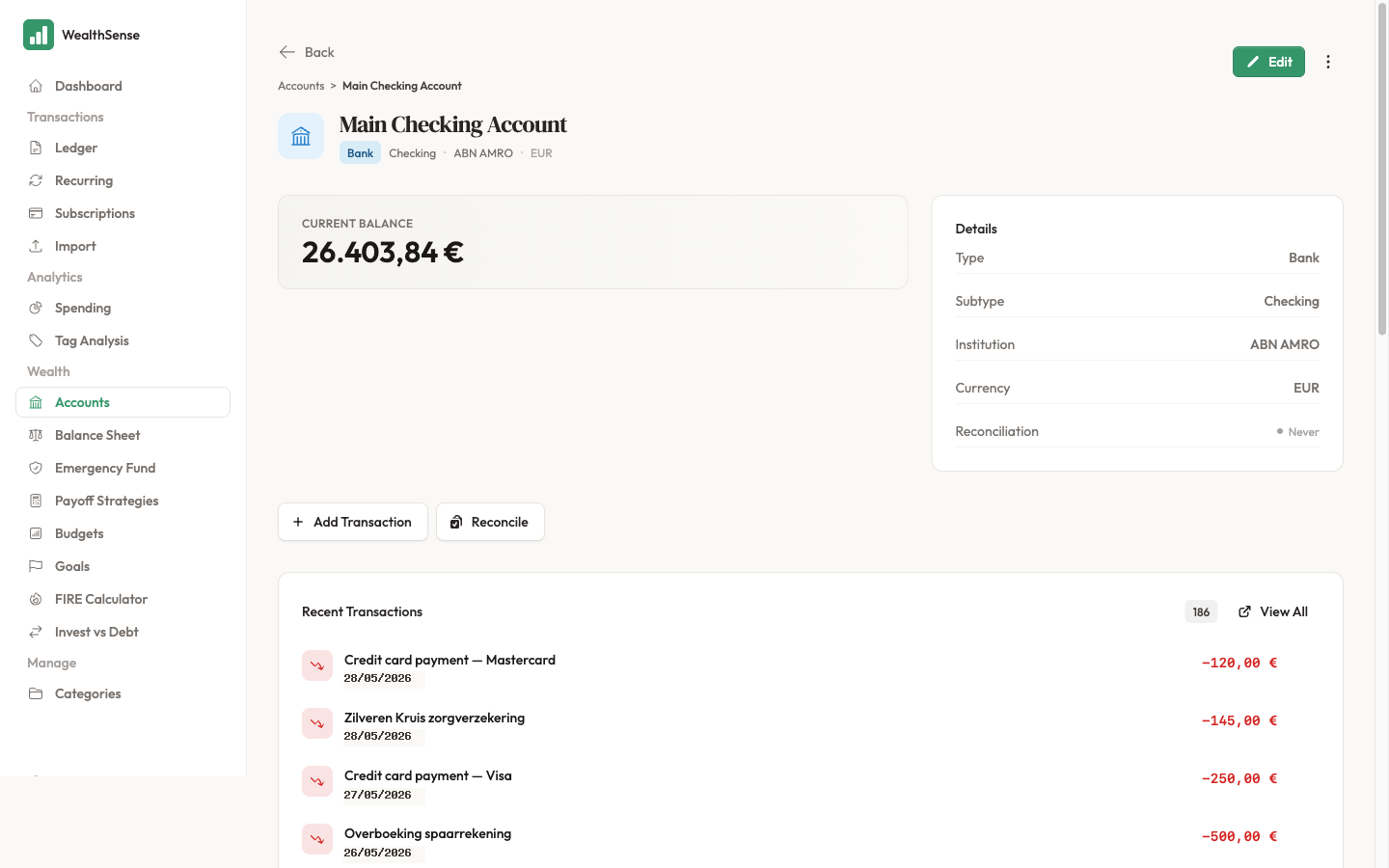
Open the account you want to reconcile. From the sidebar, go to Accounts and click the account name.
-
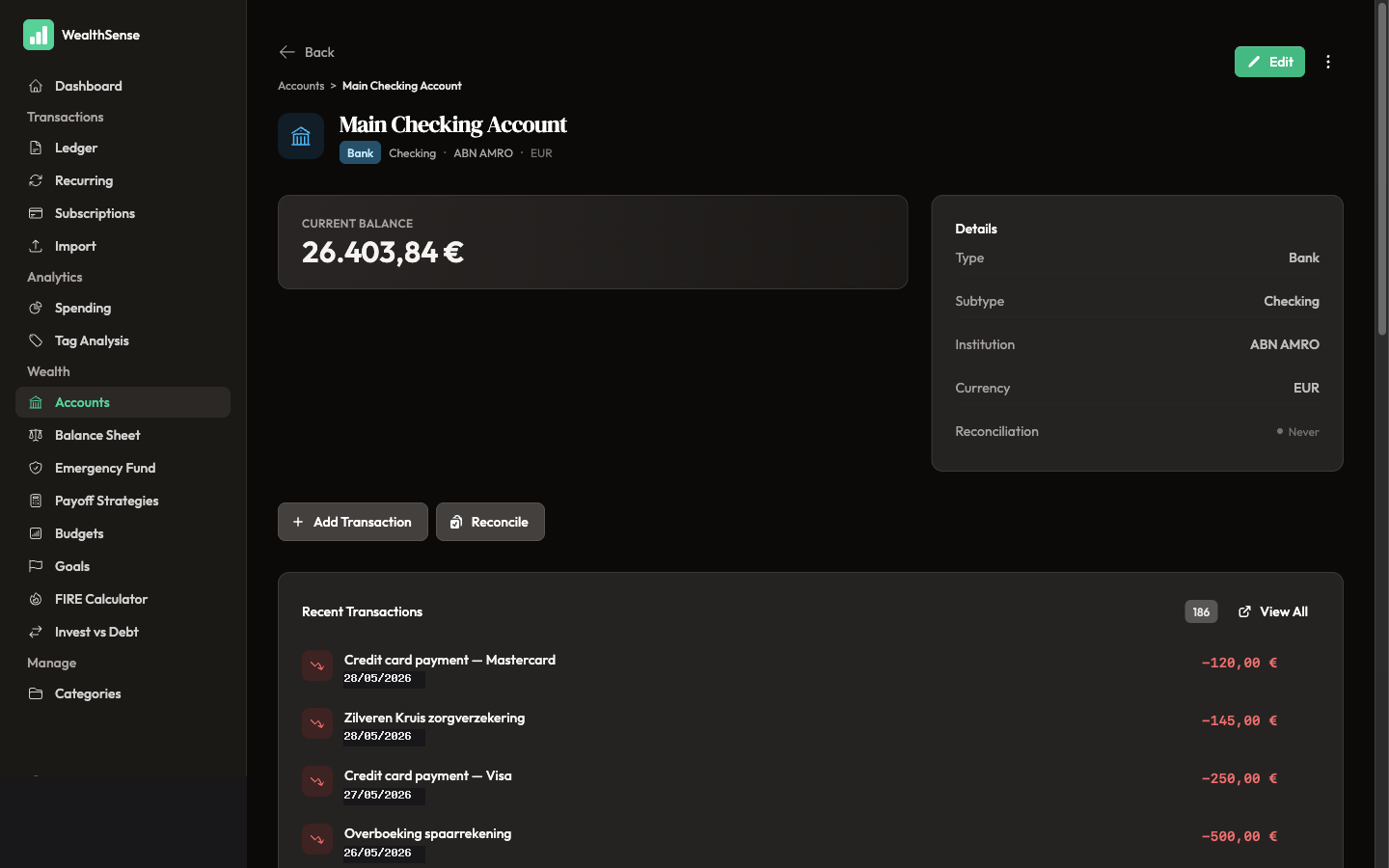
On the account detail page, click Reconcile. The button appears once the account has at least one transaction — as an outline button in the page header and as an entry in the account's actions menu (the three-dot icon). The reconciliation wizard opens.
-
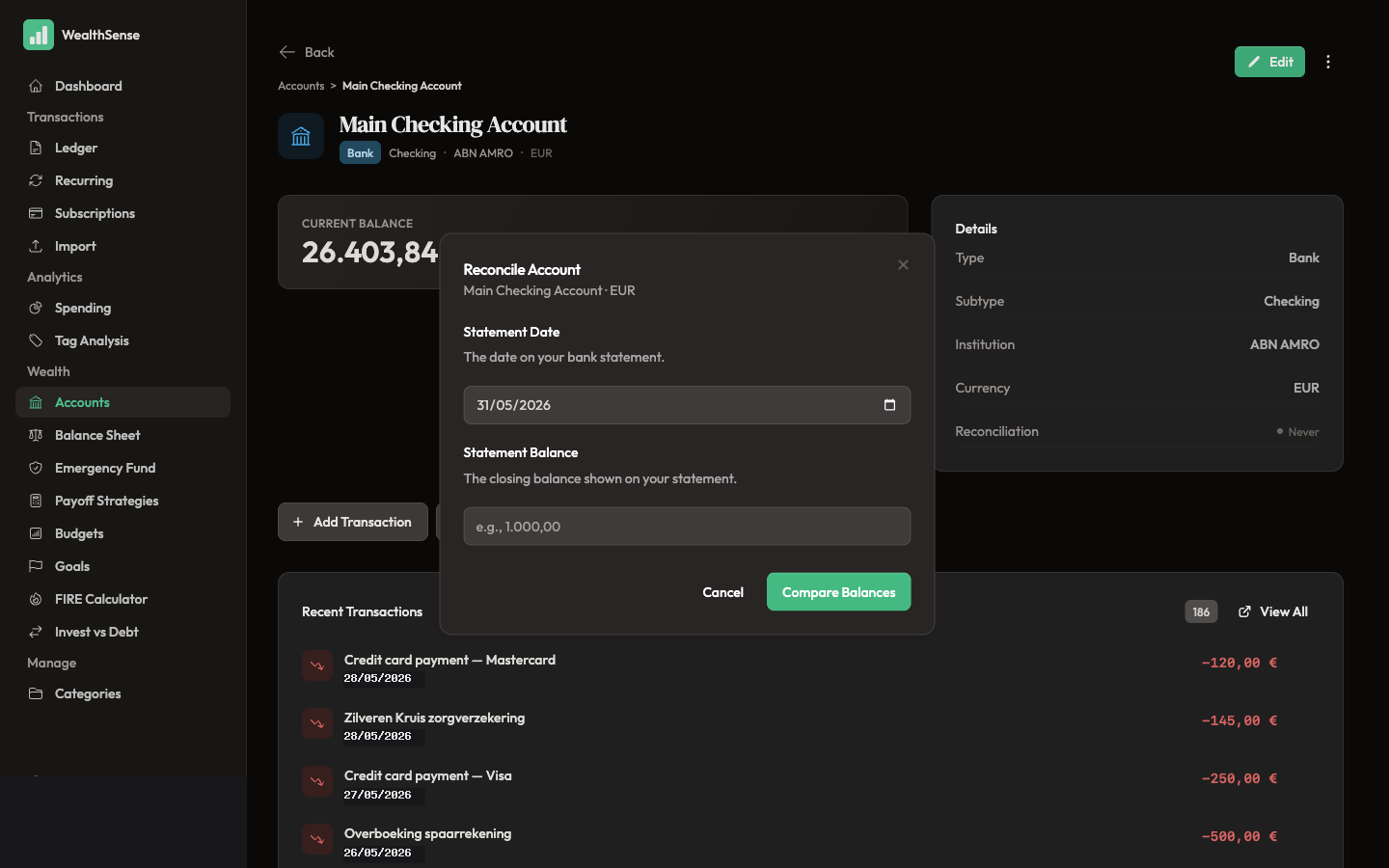
Enter the Statement Date and Statement Balance. The date is the closing date on your bank statement. The balance is the closing balance — type it the way your locale renders numbers (for EUR, that is
1.234,56). Click Compare Balances.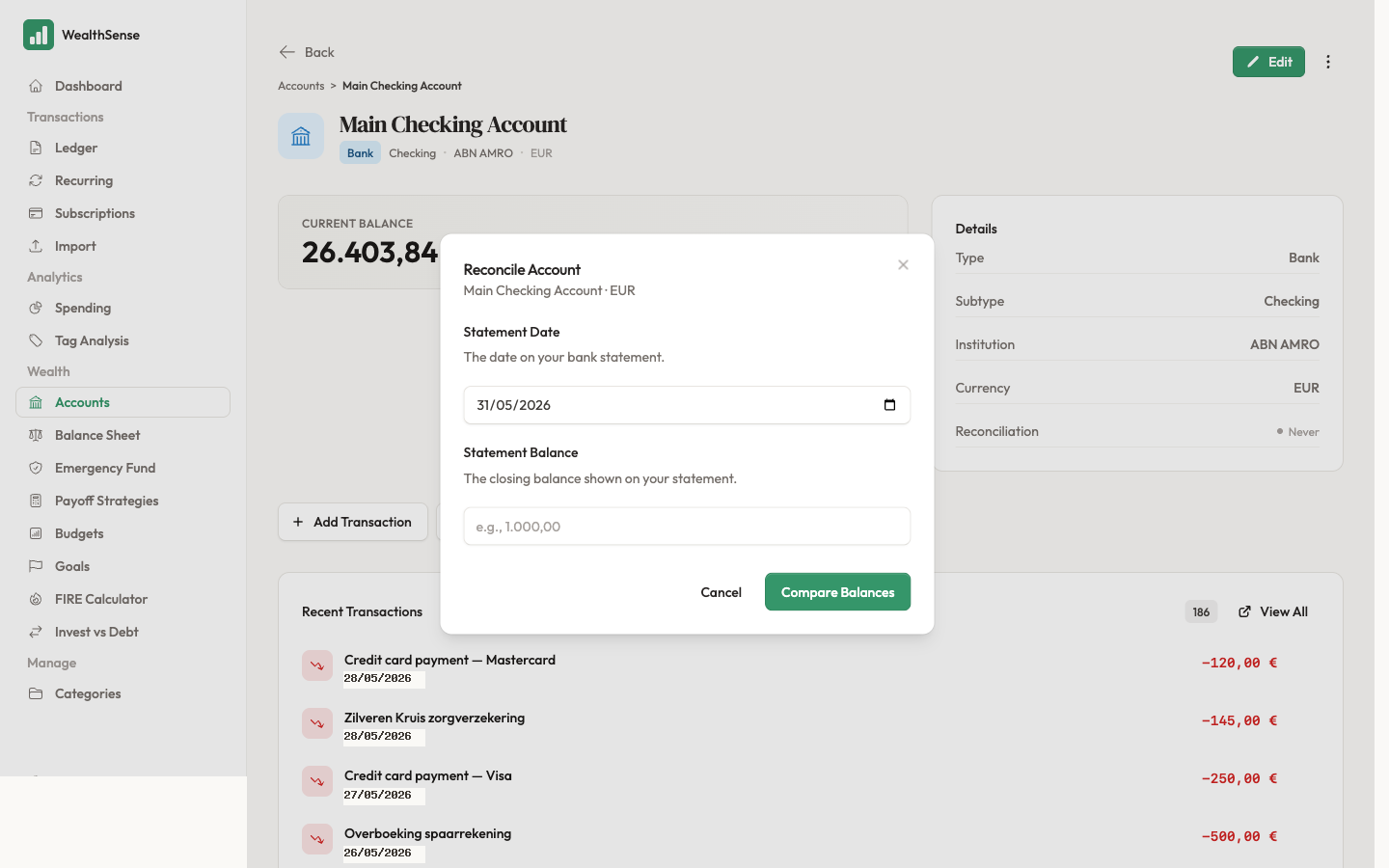
-
If the balances match, the wizard shows a green Balances match! card. Click Mark as Reconciled and you are done — the reconciliation logs with today's date and appears in the account's history.
-
If the balances do not match, the wizard shows an amber Balance Discrepancy card with the difference. Click Review Transactions to open the transaction-by-transaction review.
-
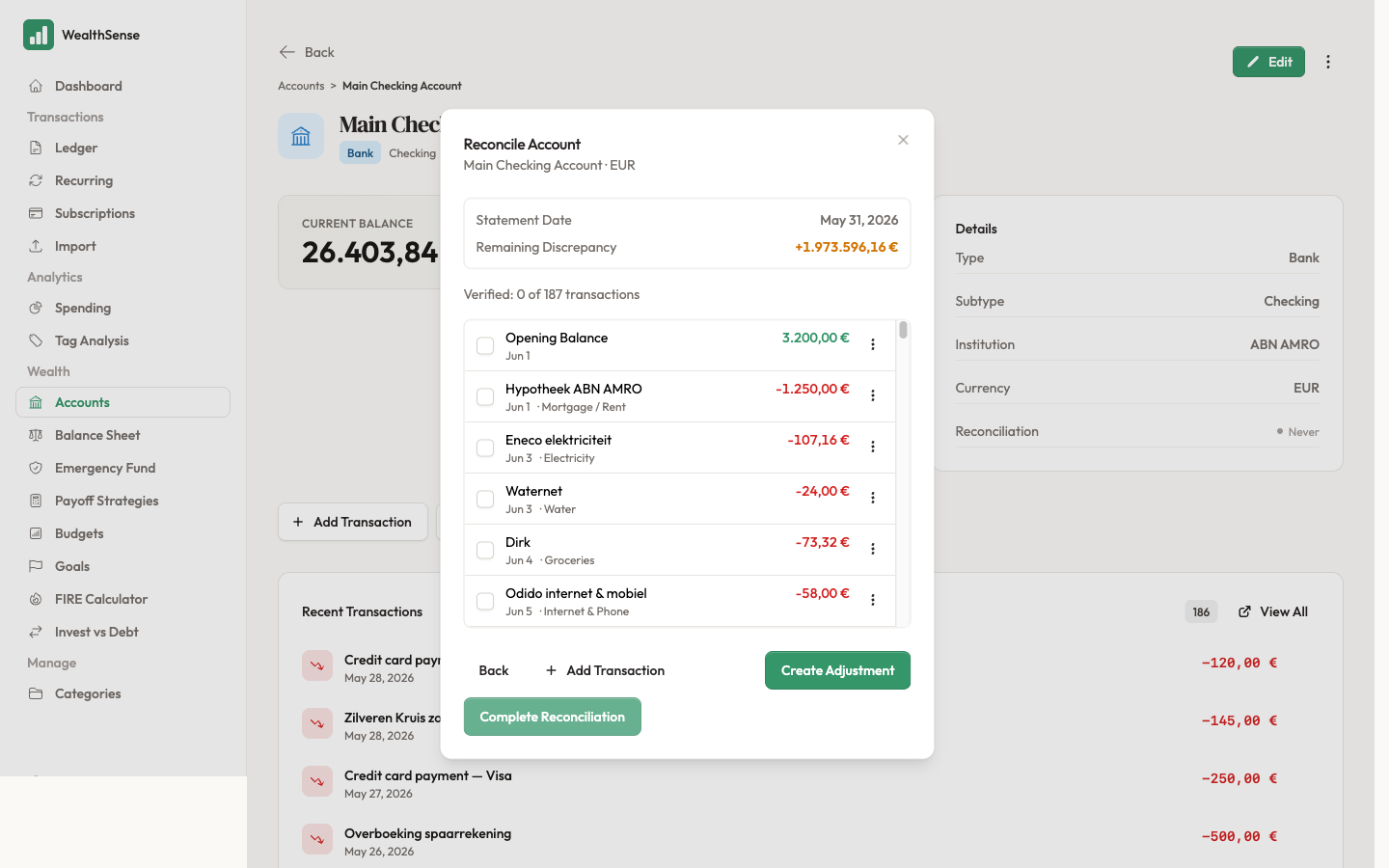
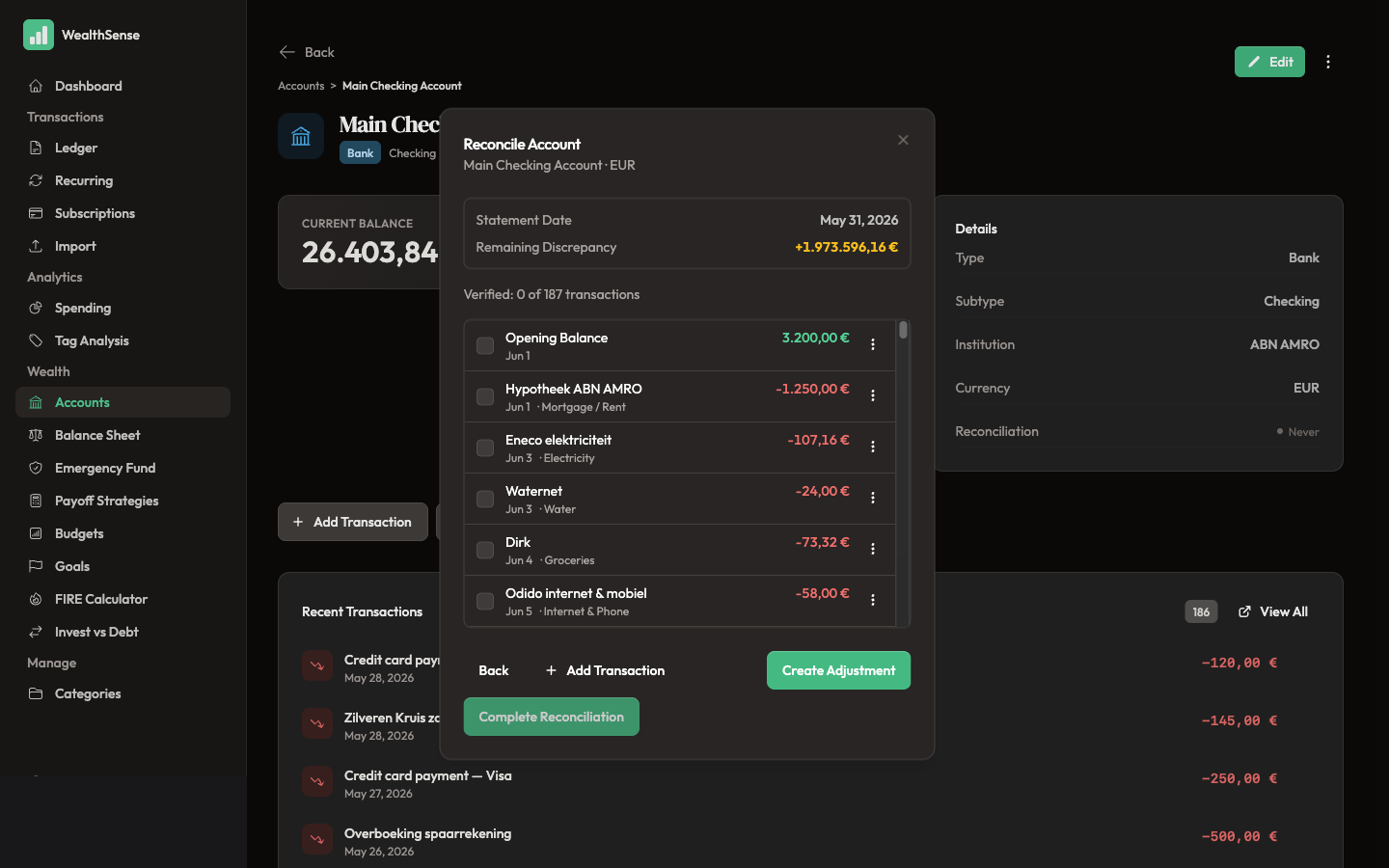
Use the review list to find what explains the discrepancy. Tick the transactions you can match on the statement, then fix the ledger until the Remaining Discrepancy reaches zero: use the row's menu to Edit or Delete anything wrong, and Add Transaction for anything missing. When the discrepancy is zero, click Complete Reconciliation. (If a few cents are stubbornly missing — bank rounding usually — Create Adjustment drops in a single balancing entry and finishes the wizard in one click.)
Why reconcile when WealthSense already shows a balance?
WealthSense keeps a running balance — every transaction you record updates it. So why open a wizard once a month to check the same number against your bank?
Because the running balance is only ever as accurate as what you have recorded. A row from your CSV import might have been skipped because the date format did not parse. A manual entry might have the wrong amount because you typed €15 when the receipt said €1.50. A recurring rule might have fired on the 1st when your salary landed on the 31st. None of those are loud failures — they live quietly inside the running balance, and the longer you leave them, the harder they are to find.
Reconciliation is the moment you compare your ledger against the bank's truth. A bookkeeper closes the period to balance the books. A strategist closes the period to see what comes next. Same wizard, different mindset — and the strategist's mindset is what lets you trust the dashboard you scan every Sunday.
You're done when…
The account's recorded balance equals the bank's closing balance on the reconciliation date, the discrepancy is zero, and the reconciliation appears in the account's history with today's date. If you opened the wizard, found nothing wrong, and clicked Mark as Reconciled — that counts too. A clean reconciliation is the strategist's clean kitchen.
See also
- The methodology behind the grey rows — Why Ghost Transactions exist
- Turn this into a weekly habit — Your 10-minute Sunday ritual
- See the cleaned-up data — Where did your money actually go?