Time: ~5 min. Need: one transaction in your ledger that needs more than a single category.
A category answers "what kind of money was that?". A split answers "what if it was three kinds at once?". A tag answers "I want to track this across categories without breaking the hierarchy." By the end of five minutes you will know which tool reaches for which problem — and you will have used all three at least once.
Categorize a transaction
-
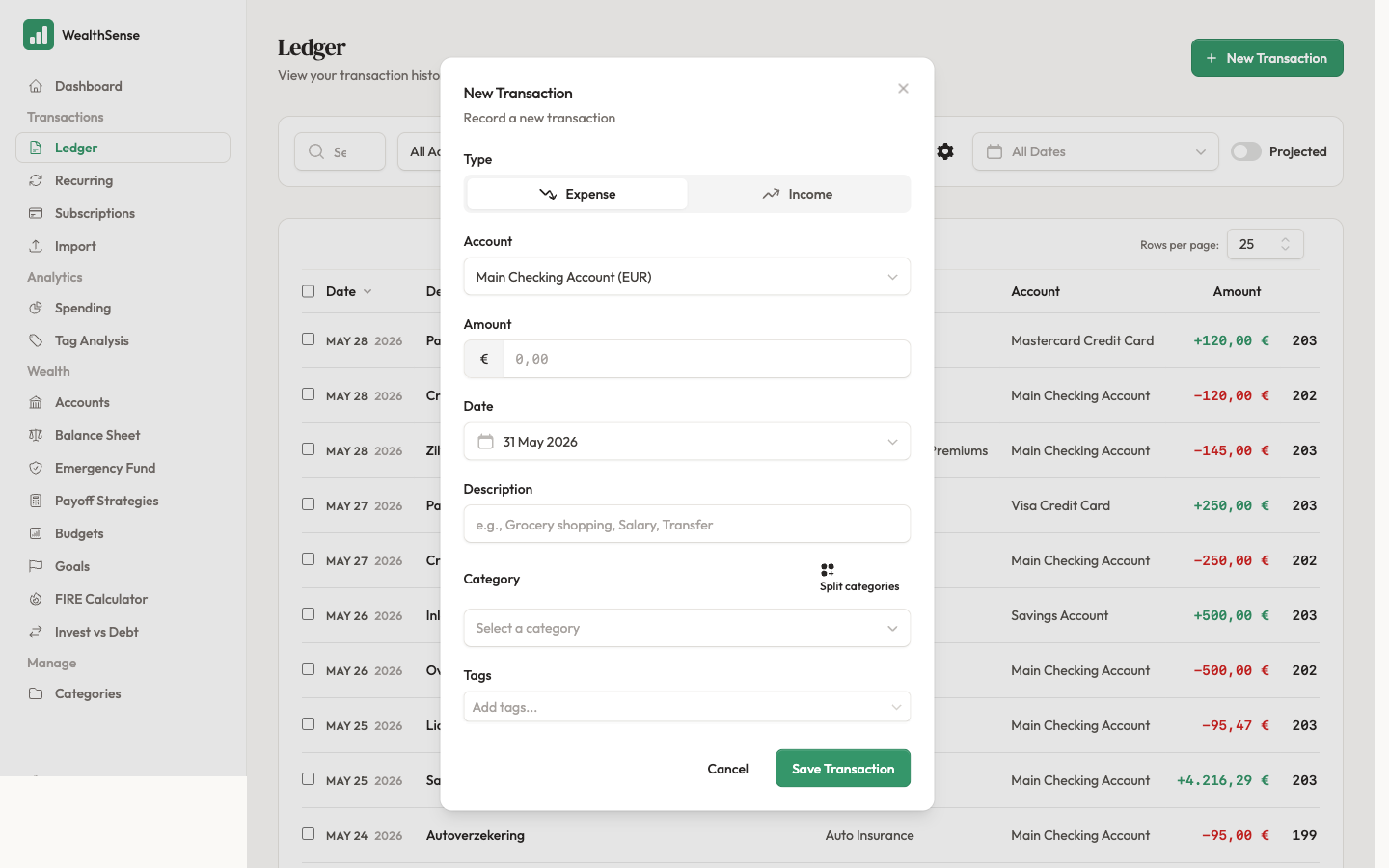
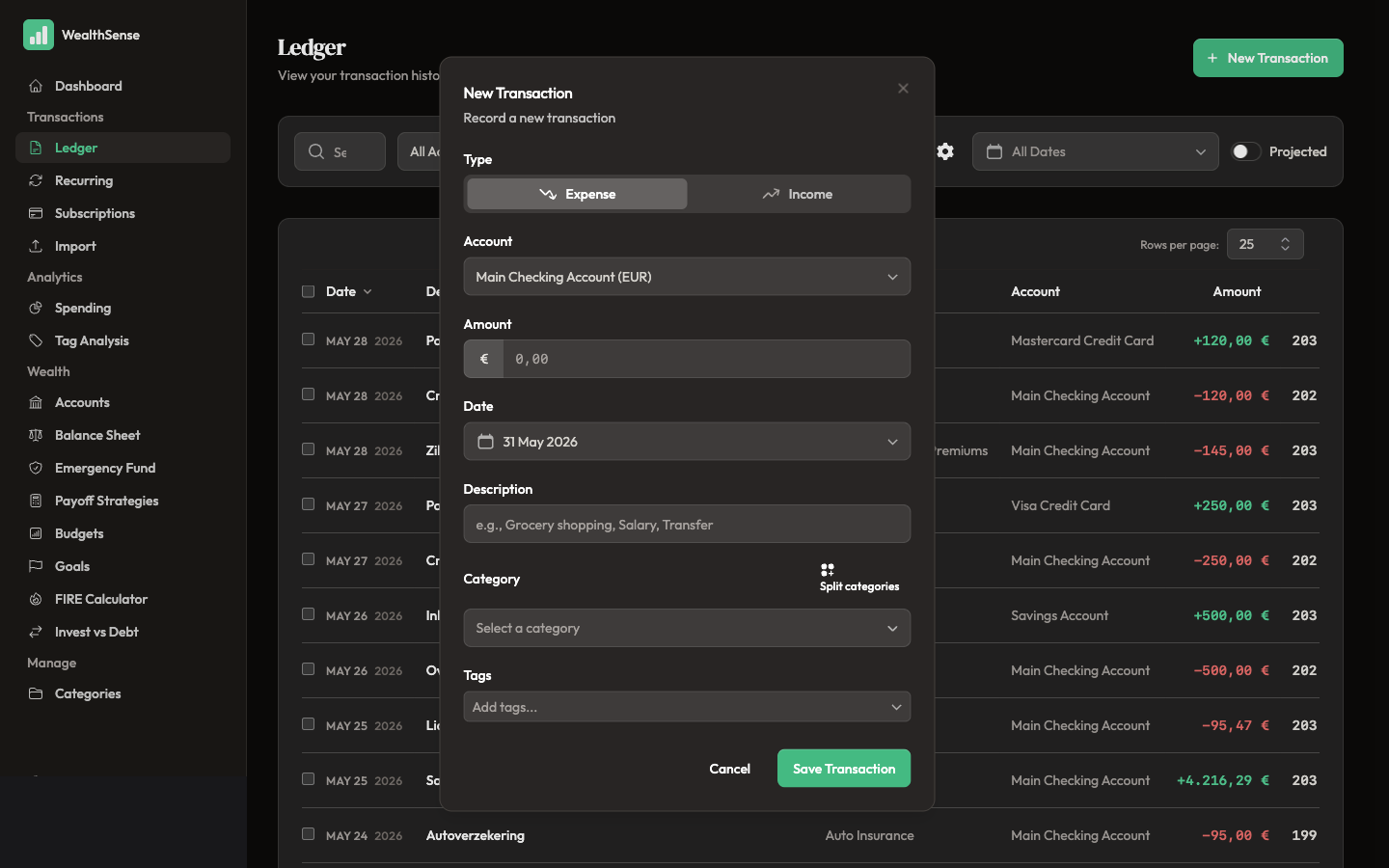
Open the transaction. From the ledger, click the row you want to categorise. The full transaction form opens with the existing values pre-filled.
-
Pick a category from the hierarchical picker. The picker is searchable — start typing "Groc" and Groceries surfaces before you finish the word. Parent categories (Food) and child categories (Food → Groceries → Bulk) live in the same list; pick the deepest one that matches.
-
Save. The ledger row updates with the new category. The spending breakdown view groups every transaction by category — getting the category right here is what makes that view accurate.
WealthSense remembers categories you have used for similar descriptions. As you type a new transaction's description, the form can surface a memory-based suggestion from your history. If a suggestion is wrong, override it — that correction becomes the better memory next time. The deeper AI import review flow lives in Let AI categorize your transactions.
Split a transaction across categories
A €70 supermarket trip is rarely one category. €50 is groceries, €15 is a bottle of wine, €5 is a birthday card.
-
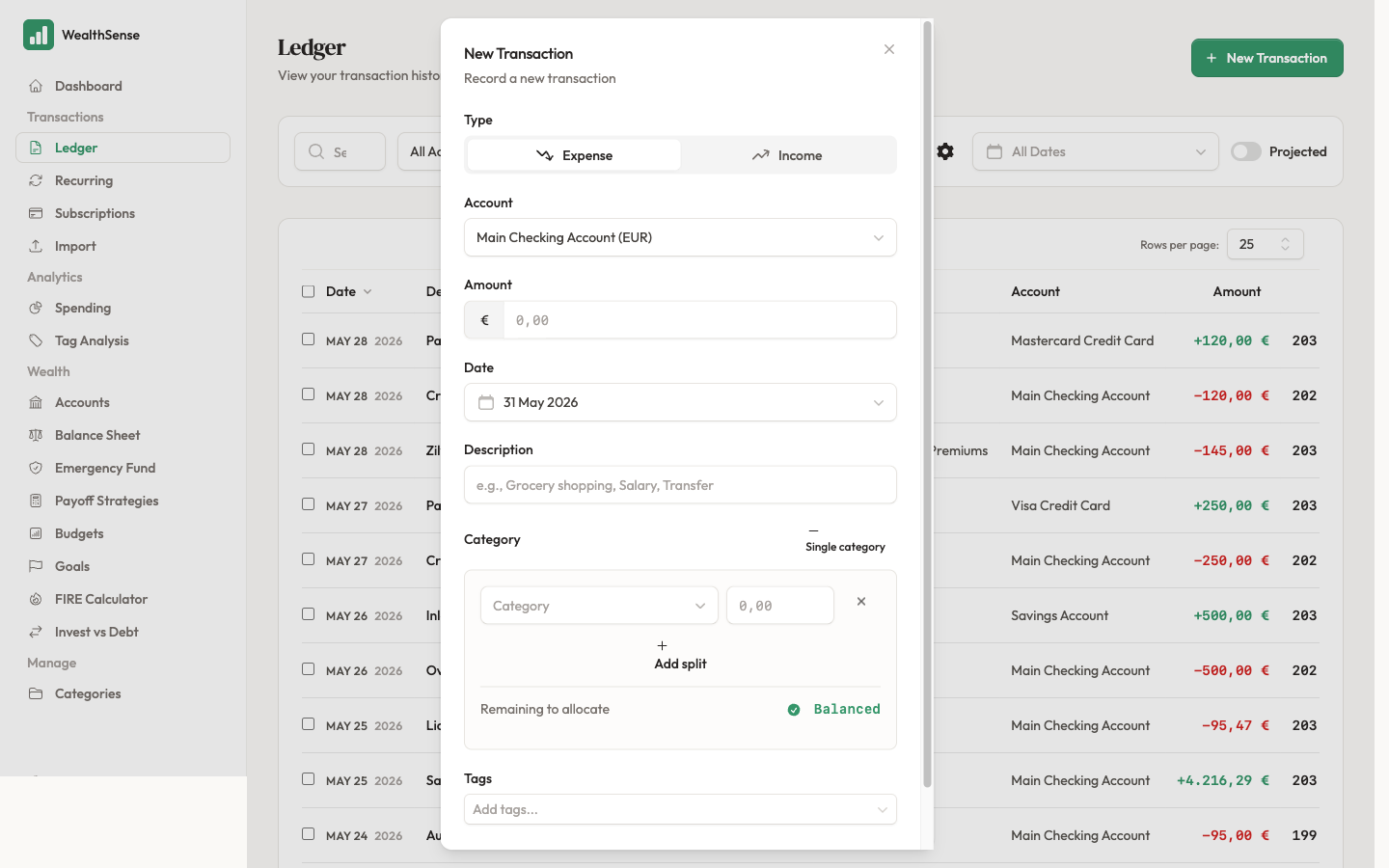
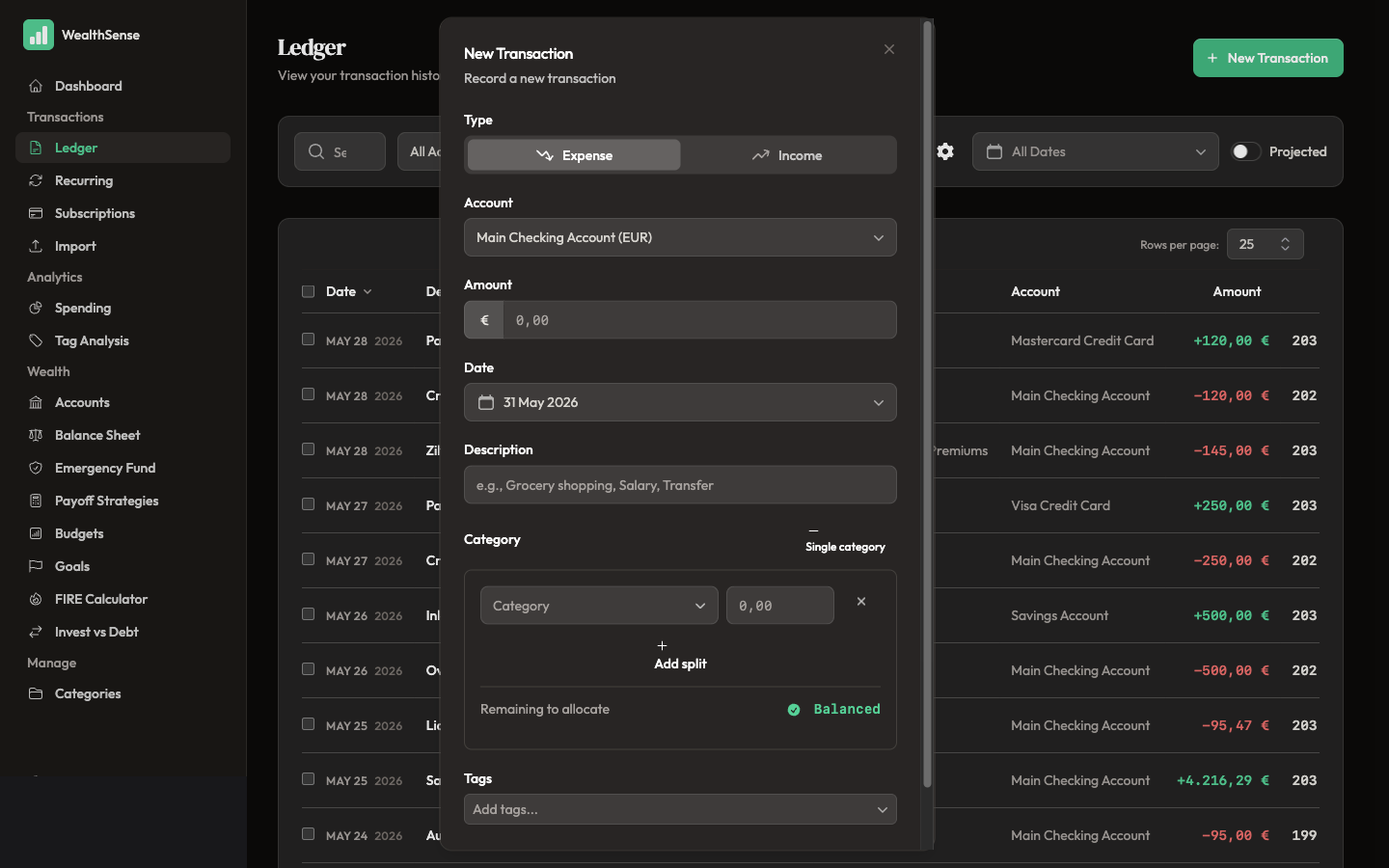
Open the transaction and click Split. The split modal opens with one row pre-populated at the full amount.
-
Add a row for each category. Pick a category, type an amount. Repeat until the rows total the original amount — the modal shows a running difference at the bottom and refuses to save until it lands on zero.
-
Save the split. The ledger row stays as one row, but its category column now reads "Split" — open it again and you see the breakdown. The spending breakdown view counts each split row against its own category, not the parent transaction.
Tag a transaction with extra labels
Tags are orthogonal to categories. The category answers "what was this for?". A tag answers "what life context does this belong to?" — a holiday, a freelance client, a one-off project.
-
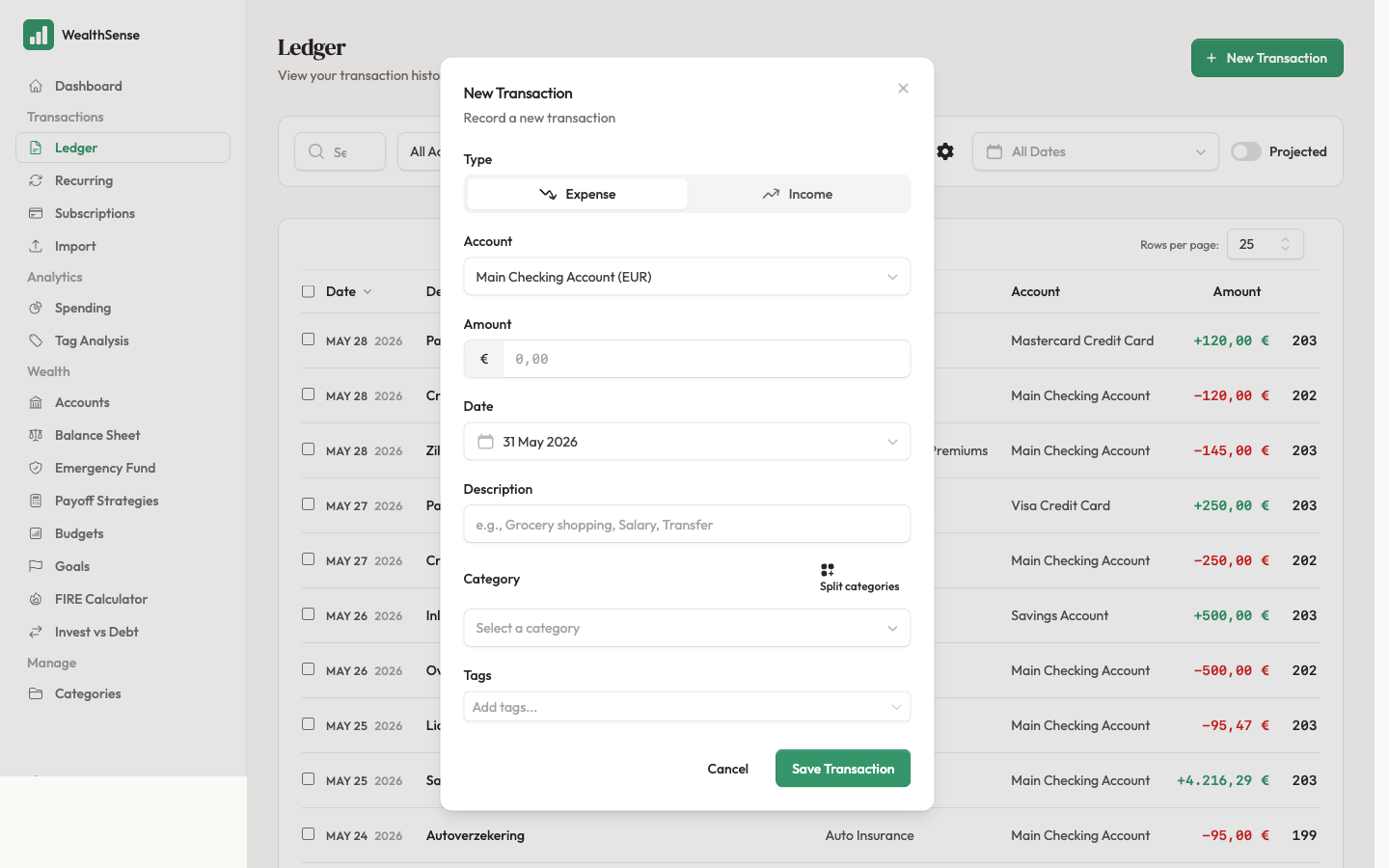
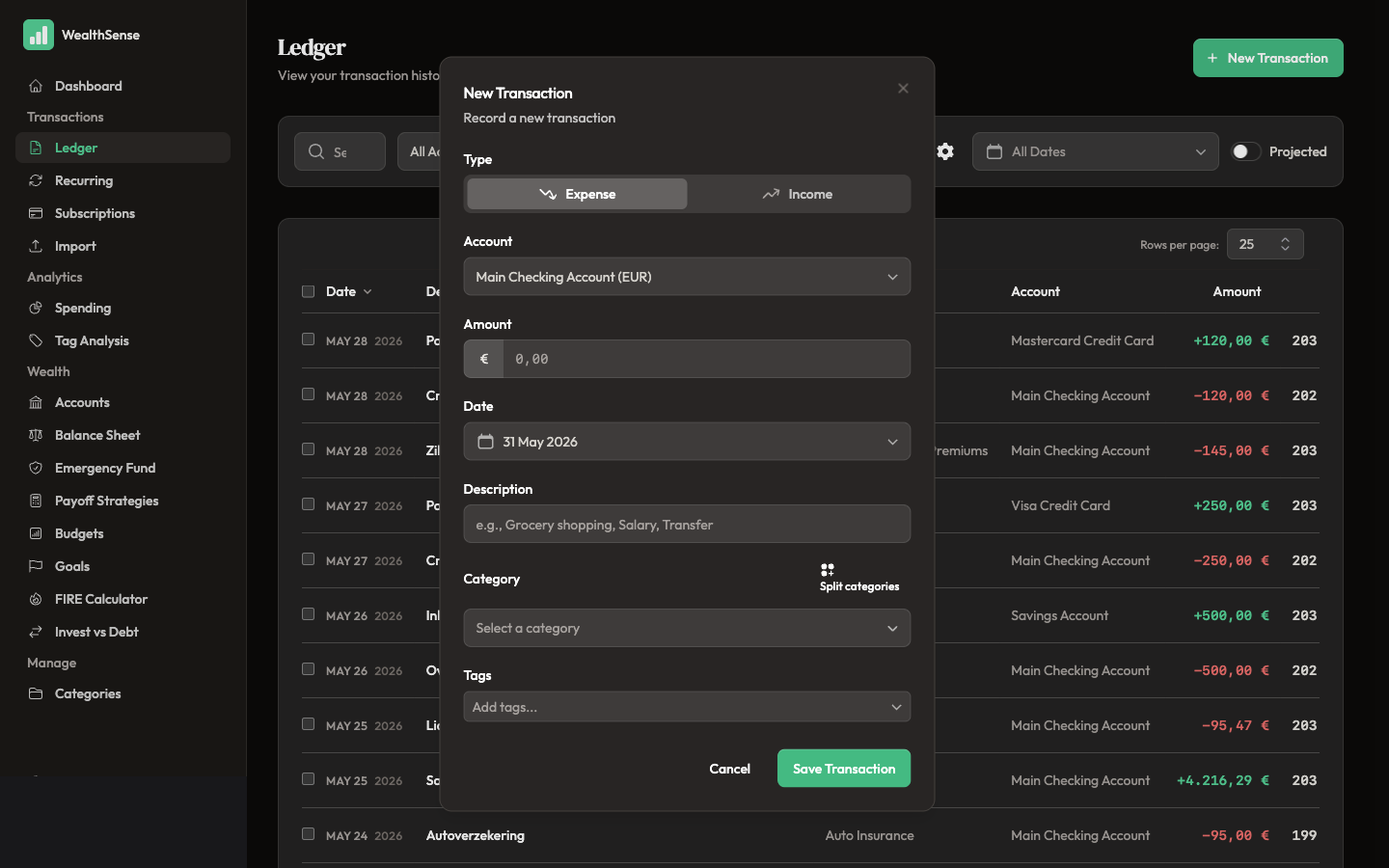
In the transaction form, type into the Tags field. Existing tags surface as suggestions as you type. New tags are created inline — type "Italy 2026", press Enter, and the tag becomes usable on any other transaction.
-
Save. Tagged transactions surface in the tag-spending view alongside their category. One transaction can carry many tags; a holiday's flights stay under Travel (category) and Italy 2026 (tag) at the same time.
You're done when…
Every transaction in your ledger has a category that matches the way you think about money — and you can name when you would reach for a split (one purchase, multiple categories) versus a tag (cross-cutting context across many purchases).
See also
- Fast entry first, refine later — Record a transaction in under 30 seconds
- View spending by category — Where did your money actually go?
- The AI categorisation deep dive — Let AI categorize your transactions