Time: ~5 min. Need: one month of imported transactions categorised, plus an idea of which categories you want a ceiling on.
A budget in WealthSense is not an envelope. You do not pre-allocate every euro at the start of the month. You pick the two or three categories where overspending hurts most, set a ceiling, and the dashboard tells you when the meter is on track to overshoot — before the month is over. By the end of five minutes you will have a budget meter on your dashboard for the category you care about, and you will know the difference between a budget meter and an envelope.
Steps
-
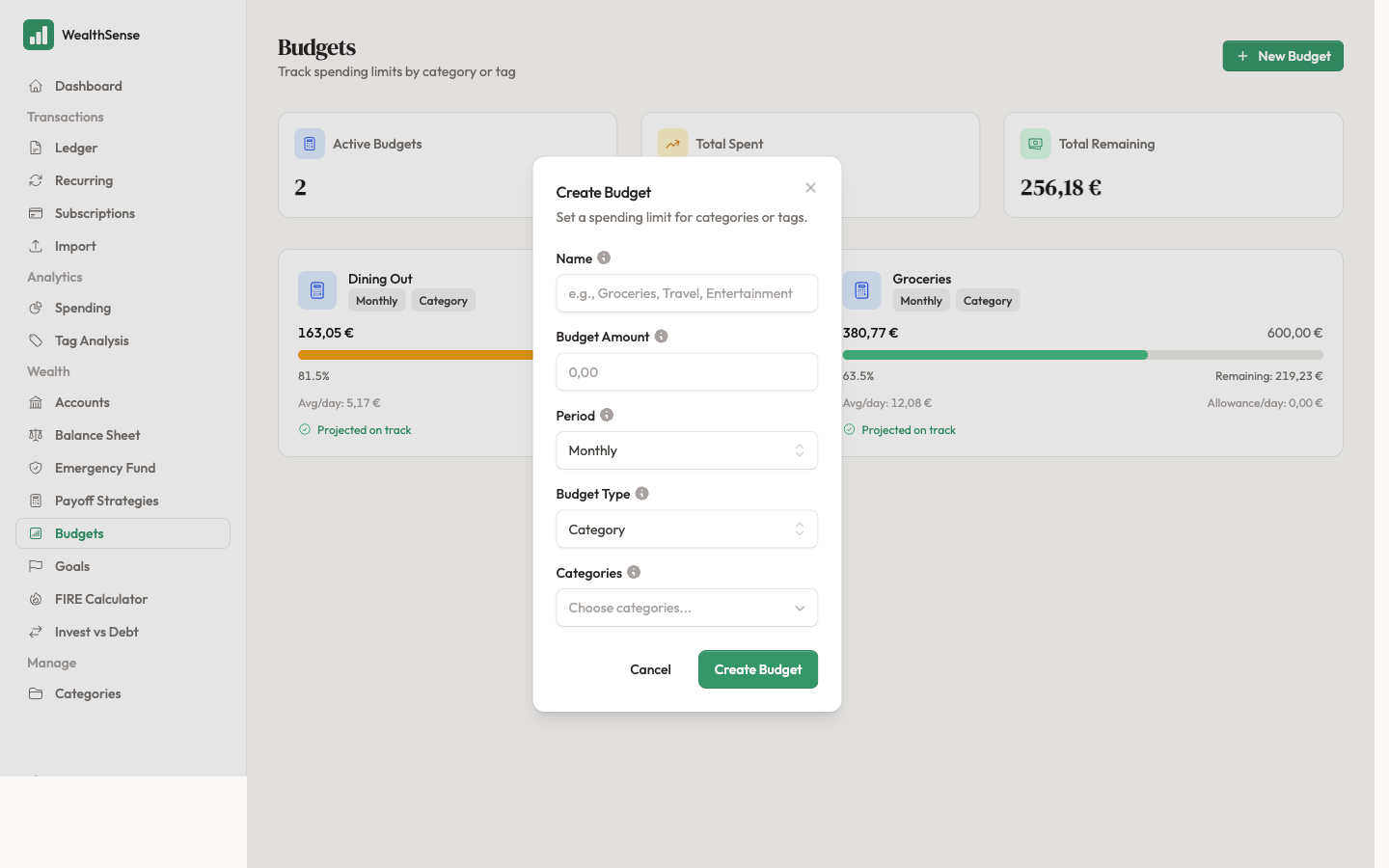
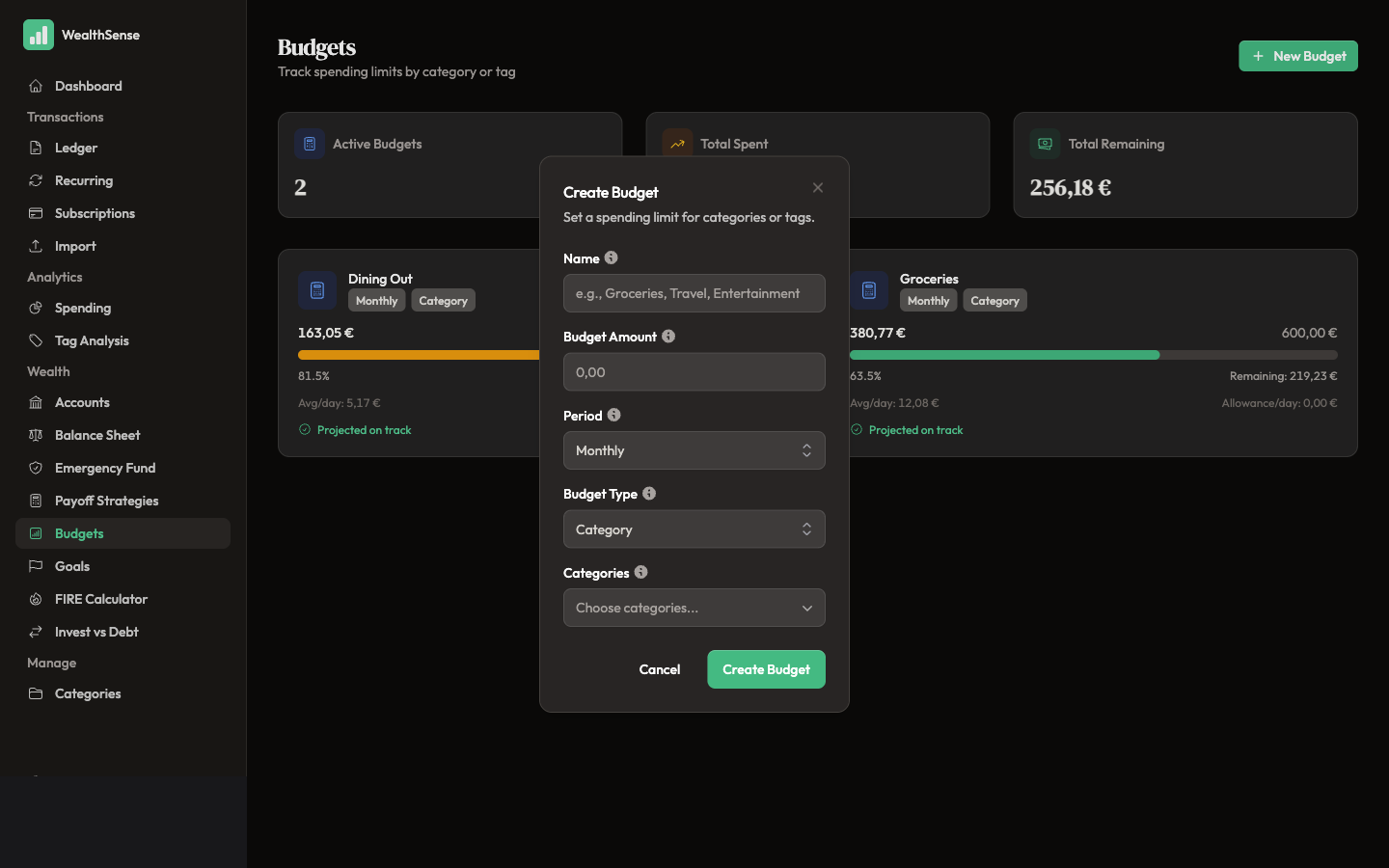
Open Budgets from the sidebar and click + New Budget. The form opens to a blank budget.
-
Name the budget and pick the period. The name is for you — "Eating out", "Groceries", "Travel". The period is Monthly (the meter resets on the 1st) or Annual (the meter accumulates from January to December).
-
Set the amount. This is the ceiling — what you would consider "too much" if you spent it all in one month. Pick a number from one month of real history, not from aspiration. If you spent €420 on eating out last month, a sensible ceiling is €400, not €200. A ceiling that is too tight is one you will overrun every month and then ignore.
-
Choose what to budget against. Two options:
- Category — the meter tracks every transaction in the chosen category. Use this for day-to-day spending (groceries, eating out, transport).
- Tag — the meter tracks every transaction carrying the chosen tag. Use this for a project or a window of time (e.g. a "Wedding" tag during the months you are spending against it).
The category picker is the same hierarchical picker you use on the transaction form, so your categorisation work feeds the budget meter directly. If categories are wrong, the meter is wrong — getting the daily categorisation right is what makes the monthly budget honest.
-
Save and open the dashboard. The budget meter appears with a progress bar, the amount spent, the amount remaining, and a colour that turns from green to amber to red as the month wears on. The bar uses days-of-month-elapsed as the comparator — if you are 60% through the month but the meter is at 90%, you are on track to overshoot, and the bar tells you so before the bills land.
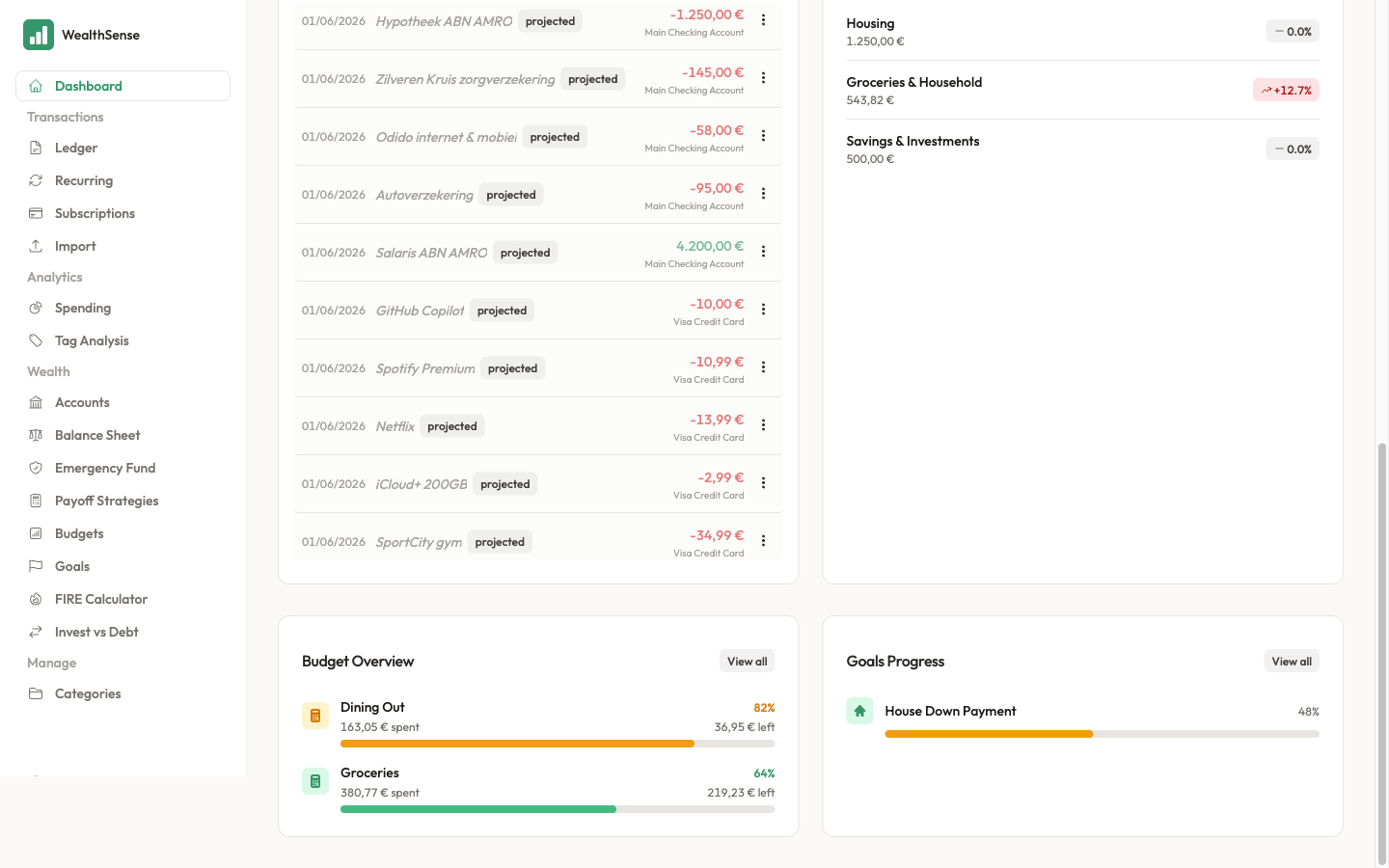
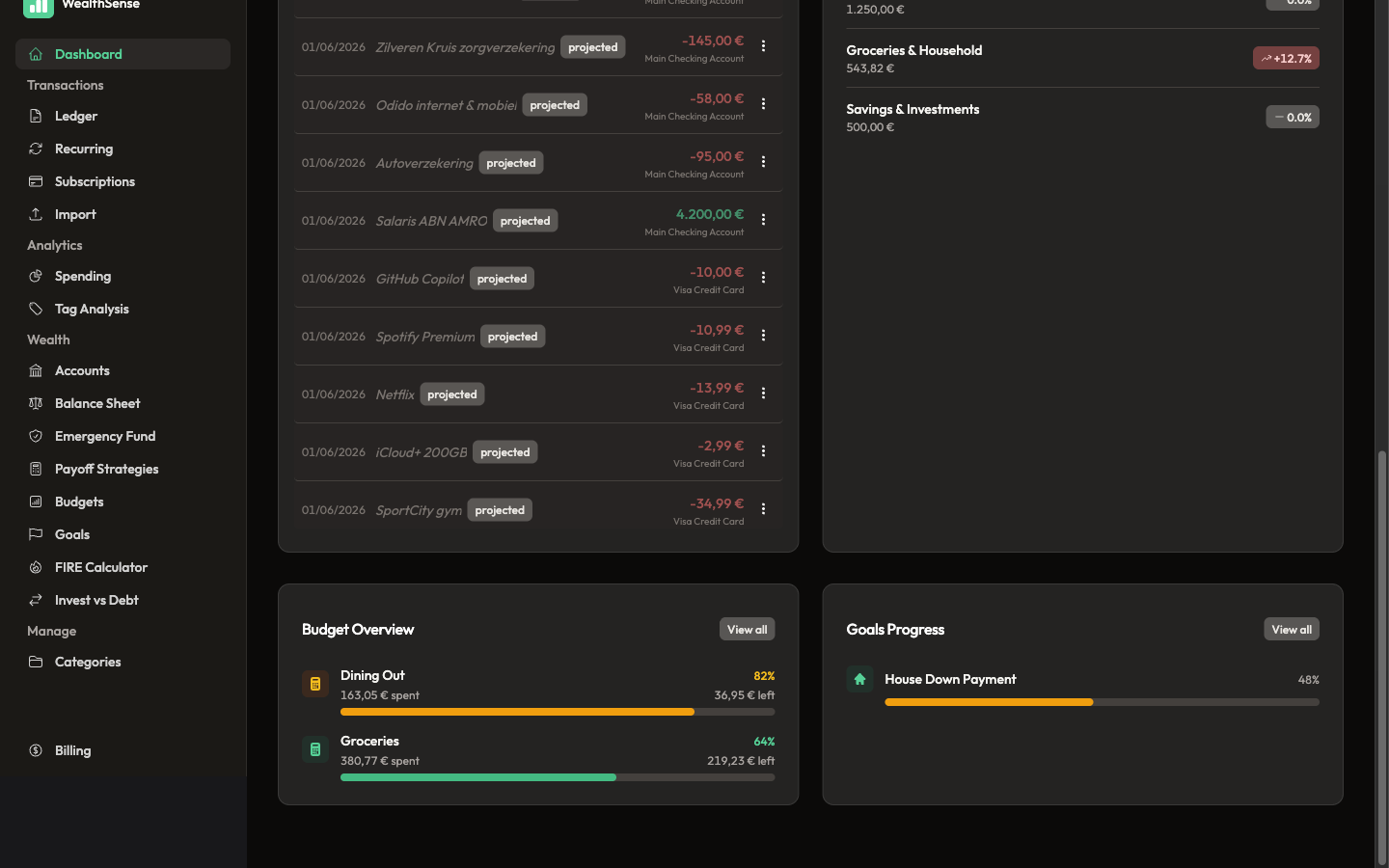
A budget is a ceiling that warns. A goal is a target you are working toward. The dashboard shows both, side by side — the goal article covers the other half of the same picture.
You're done when…
You see at least one budget meter on your dashboard, you know which category it caps, and you can spot when the meter is on track to overshoot before the month is over.
See also
- The goal a budget supports — Set a goal you'll actually hit
- Categorise transactions to feed the budget meter — Categorize, split, and tag transactions
- Where the money actually went — Where did your money actually go?